Direct Answer: Error-free electronics pack-out starts with power-down safety checks, high-resolution rear-panel port photographs taken before touching any plug, matching wrap-around flag labels on both cable and jack, and tethered accessory bags holding power bricks and mounts.
.md twin for estimator QA and carrier file documentation.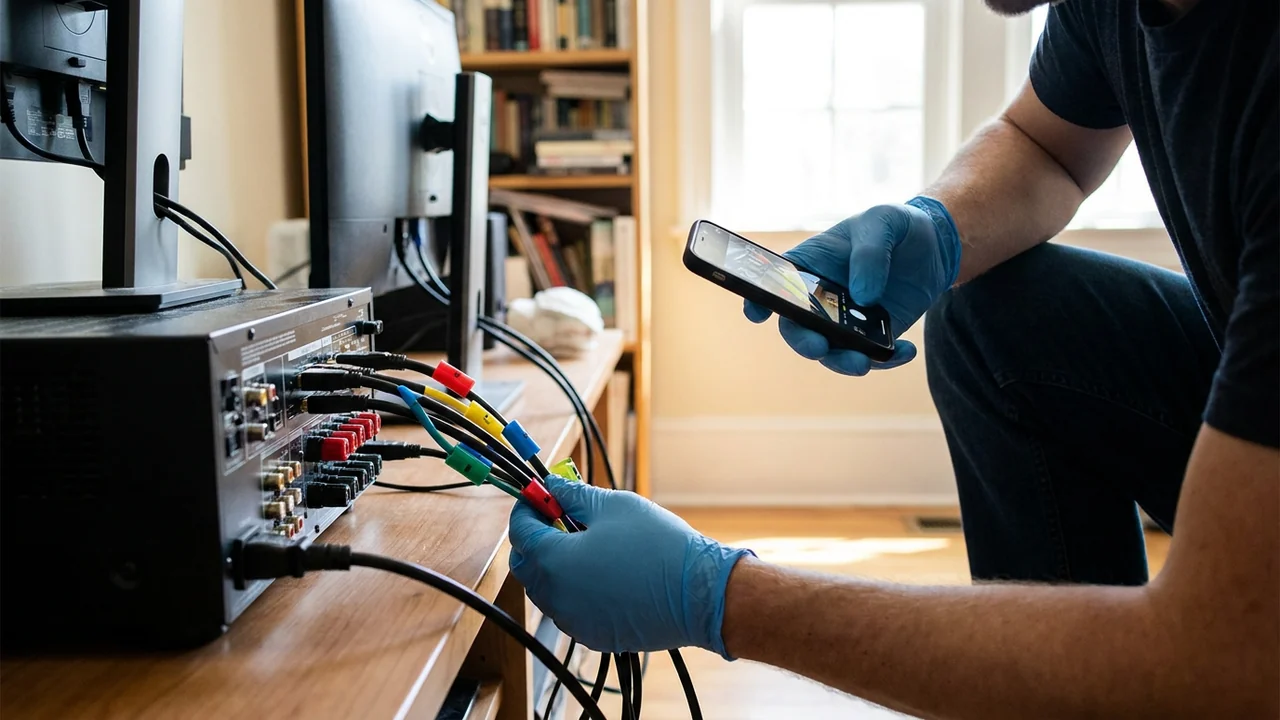
Pulling cords blindly out of the back of an entertainment center, dual-monitor home workstation, or dental clinic reception desk creates two problems at pack-back ninety days later. First, nobody remembers which proprietary DC power brick belongs to the docking station versus the label printer—and plugging a 24-volt brick into a 12-volt medical or audio port fries the board instantly. Second, missing one specialized DisplayPort or fiber-optic interconnect delays a homeowner’s or business’s return to work.
Before a single wire is pulled, technicians also face safety and coverage risks. Unplugging energized equipment on wet floors, mishandling swollen lithium-ion battery backups, or failing to protect HIPAA- or privacy-sensitive clinic workstations turns a routine contents pack-out into a costly liability event under ANSI/IICRC S320 and NIST Privacy Framework awareness.
Disciplined cable mapping takes less than five minutes per desk or AV rack and guarantees clean pack-back. Pairing rear-panel photos, matching port-to-cable flags, and tethered power-brick bags keeps every workstation whole from disconnect to final test.
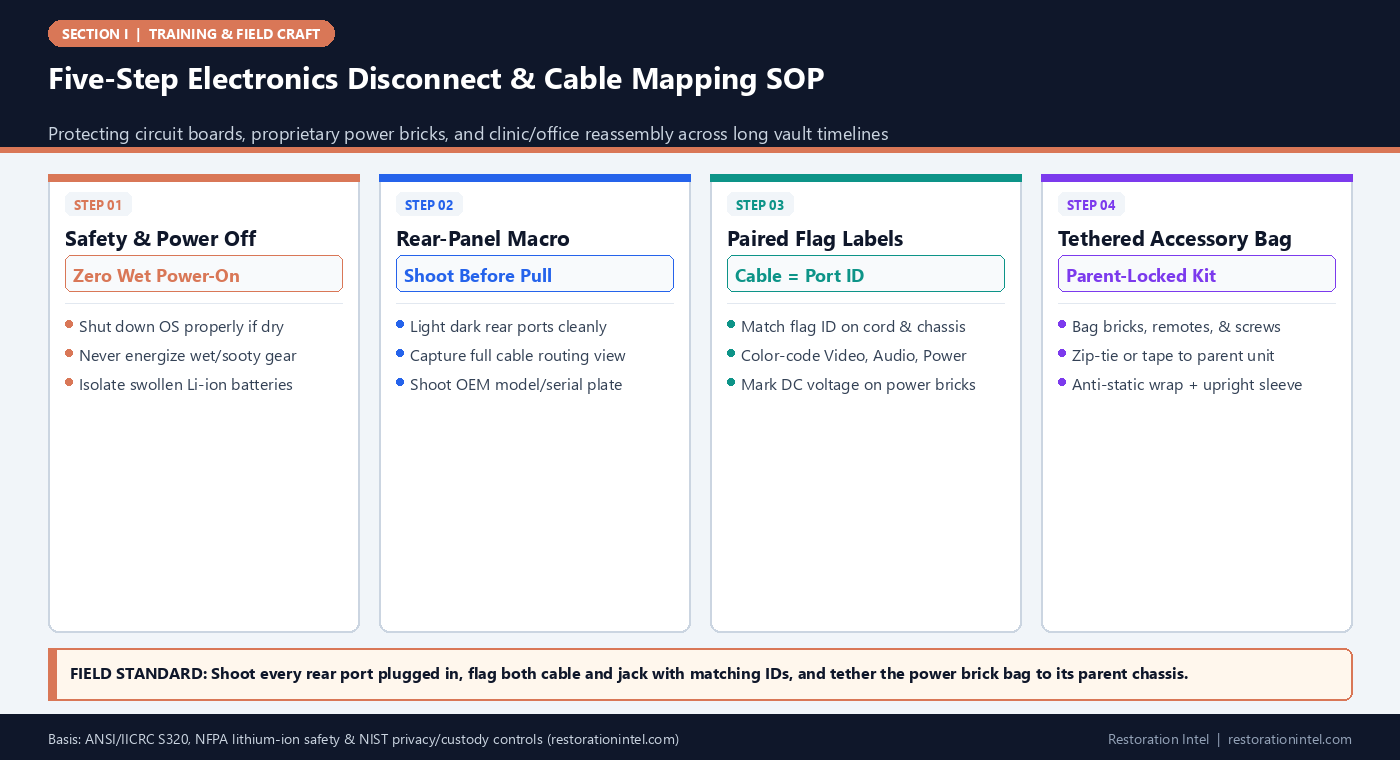
Five-Step Electronics Disconnect & Cable Mapping SOP
Cable Mapping & Disconnection Protocol by Electronics Environment
Tailored labeling, data-privacy, and packaging safeguards across home entertainment, remote-work, and clinical environments.
| Workstation / Rack Class | Pre-Disconnect Requirement | Labeling & Mapping Code | Accessory / Brick Custody | Primary Handling or Liability Risk |
|---|---|---|---|---|
| Living Room AV Receiver & Home Theater | Photo front panel settings + well-lit rear speaker/HDMI matrix | Color flags: Red=Power, Blue=HDMI, Green=Speaker (+/- polarity) | Bag remote, calibration mic, & optical cords directly to AVR chassis | Snapped optical/HDMI ports or reversed speaker wire polarity |
| Home Office Dual-Monitor Workstation | Confirm PC powered fully off (no sleep mode); check UPS battery | Numbered pairs `PC-1`..`PC-8` on dock, monitors, & laptop PSU | Separate labeled bag for monitor screws, VESA bolts, & proprietary PSU | Swapping mismatched USB-C/barrel power supplies or losing VESA bolts |
| Gaming Rig & Custom Desktop Tower | Verify internal GPU weight; check liquid-cooling loop integrity | Photo motherboard rear I/O + GPU ports before unplugging | Anti-static bag for loose dongles; pack internal GPU foam if shipped | PCIe slot fracture from heavy graphics cards bouncing in transit |
| Dental / Medical Clinic Front Desk | Owner/IT sign-off for PHI servers, encrypted drives, & patient terminals | Station prefix `CLINIC-D1-A..F` matching wall-drop Ethernet jack | Keep HIPAA/encrypted drives in owner/IT custody bag when requested | HIPAA privacy exposure or severed proprietary scanner/sensor cables |
| Commercial POS & Network Patch Rack | Diagram router/switch uplink order + ISP modem MAC label | Port-number tags (`SW1-P04`) matching patch cable ends | Secure rack-mount ears, power strips, & fiber jumpers in labeled tote | Lost internet/POS routing order halting business reopening |
| Wet or Fire-Damaged Electronics | NEVER plug in to test; cut breaker if wet; check Li-ion swelling | Tag unit `DO NOT ENERGIZE` + capture serial plate & internal vent proof | Keep damaged external power bricks with unit for bench/subro audit | Electrical shock, board shorting, or thermal runaway in lithium packs |
Pre-Disconnect Power, Moisture, and Battery Safety Gates
Before reaching behind an AV cabinet or office credenza, verify the electrical and physical state of the equipment. On dry, unaffected rooms packed out ahead of reconstruction, ask the homeowner or office manager to shut down desktop computers, NAS servers, and point-of-sale terminals cleanly through their operating system rather than yanking wall plugs from spinning drives.
On active water or fire losses governed by ANSI/IICRC S500 and ANSI/IICRC S700, enforce an absolute zero-power rule: never plug in or press the power button on wet, humid, or soot-coated electronics to see if they still turn on. Residual moisture or conductive carbon soot bridges circuits and burns out repairable power supplies instantaneously.
Inspect uninterruptible power supply (UPS) lead-acid bricks, laptop packs, and cordless tool batteries for heat blistering, swelling, or water ingress. Following NFPA lithium-ion battery safety guidance, never pack swollen or fire-exposed lithium batteries inside tight cardboard cartons with combustible paper.
- Breaker-first on wet floors: Confirm wall outlets and surge strips are de-energized at the panel before handling wet cords.
- Clean OS shutdown when dry: Never hard-pull power on live NAS storage boxes or workstations while drives are spinning.
- Battery isolation: Remove swollen or water-exposed lithium packs from laptops/UPS trays and stage safely per haz-SOP.
Rear-Panel Lighting and 'Shoot-Before-Pull' Port Mapping
Behind every entertainment credenza sits a dark jungle of identical black cords jammed inches from the drywall. Pulling them out first and trying to sort them on the floor afterward guarantees confusion. Make rear-panel photography mandatory *before* touching the first connector.
Slide the console out six to twelve inches smoothly—never jerking taut cables—aim a portable LED work light directly onto the input jack array, and shoot two sharp photos: one wide diagram view showing every plugged cable entering its port, and one close-up showing text labels beside HDMI, optical audio, coaxial, and DC power sockets. Capture the device’s OEM model and serial rating plate in the same sequence.
This pre-disconnect photo anchor ties directly to chain-of-custody verification and mirrors the workstation separation discipline covered in pre-loss documentation for remote offices and clinical suites.
- Work-light illumination: Smartphone flash reflects harshly off black plastic ports; use a side-held LED wand for legible jack labels.
- Strain-free slide: Check cable slack before sliding heavy AV racks or clinic desks so tight DisplayPort plugs do not snap circuit boards.
- OEM plate capture: Shoot the brand, model, and serial tag while the back of the unit is already exposed and lit.
Flag-Labeling Cords and Tethering Proprietary Power Bricks
Photos alone only tell half the story if fifteen black HDMI and USB cords are tossed loose into a shared cardboard box. Every detached cable needs a wrap-around self-laminating or colored painter’s-tape flag tag placed two inches behind the plug, paired with a matching sticker or tape tab placed right beside the empty jack on the device chassis.
Use a simple, universal coding system across crews: color-code by signal class (for example, Red for AC/DC power, Blue for video/HDMI/DisplayPort, Yellow for network Ethernet, Green for audio/speaker) and write a unique pair code on both cable and port (`AV-1`, `AV-2`, `MON-L`, `MON-R`). For multi-zone home theater receivers, label both the source end and destination end of long speaker runs.
Most critical of all are proprietary DC power bricks and mounting hardware. Never drop AC adapters into a generic ‘cables box.’ Coil each brick neatly, write its parent device name and voltage directly on a tape band around the brick, place it inside a clear zip bag with any remote controls or VESA monitor stand screws, and physically tether or tape that bag onto the chassis or inside the parent carton.
- Voltage tag on every brick: Write the parent device and output voltage (e.g., ‘Dell Dock 19.5V’) right on the brick tape.
- Zero-orphan hardware bags: Tape bagged VESA stand bolts, TV legs, and shelf pins directly to the back of the monitor or TV sleeve.
- Soft-coil rule: Wrap cables in loose 6-inch loops secured with Velcro straps or tape flags—never knot or sharply kink fiber or HDMI cords.
Anti-Static Packaging, Screen Protection, and Data Privacy Custody
Flat-screen monitors, OLED televisions, and glass iMac displays shatter effortlessly if laid flat under stacked boxes or wrapped with bare bubble wrap pressed tight against anti-glare coatings. Always place screens upright inside rigid double-wall TV/monitor telescoping cartons lined with soft foam sleeves or clean micro-foam sheets, keeping corrugated corners protected and marking ‘UPRIGHT ONLY — DO NOT LAY FLAT’ on all four faces.
For exposed circuit boards, RAM modules, or desktop PCs with heavy internal graphics cards, use pink anti-static bubble bags rather than standard static-generating poly wrap. Never load heavy desktop towers horizontally on the glass tempered-side panel.
Finally, commercial clinics, law offices, and remote corporate workstations carry strict privacy duties aligned with NIST Privacy Framework practices. Before unplugging clinic servers, encrypted backup drives, or patient check-in tablets, confirm in writing whether the owner’s IT vendor is taking direct custody of storage media so protected health or financial data never sits unguarded in general warehouse vaults.
- Upright screen rule: Transport TVs and monitors strictly vertically on edge inside foam-lined telescoping sleeves.
- Anti-static over exposed boards: Use anti-static wrap on desktop towers, audio interfaces, and uncovered electronics.
- Owner/IT data handoff: Offer insureds and clinic managers immediate custody sign-off for hard drives, NAS units, and sensitive routers.
Practitioner Verification Checklist (I-12)
- Verify power-off state and inspect for moisture or swollen lithium batteries before touching any workstation or AV rack.
- Light the rear panel and capture wide + close-up port photos plus the OEM model/serial plate prior to unplugging a single cord.
- Apply matching port-to-cable flag labels with color-coded signal classes (`Power`, `Video`, `Audio`, `Data`) on both cord ends and chassis jacks.
- Bag proprietary DC power bricks, remotes, and stand screws with parent device labels and tether them directly to the parent unit.
- Pack displays upright in foam-lined telescoping sleeves, use anti-static wrap on PCs, and document owner/IT sign-off for sensitive data drives.
Standards, Authority References & Related Reading
Primary standards, insurance definitions, and sibling Restoration Intel guides referenced in this brief:
- ANSI/IICRC S320 Standard for Professional Contents Restoration
- ANSI/IICRC S700 Fire & Smoke Restoration Standard
- ANSI/IICRC S500 Water Damage Standard
- NFPA Lithium-Ion Battery Safety Resources
- NIST Privacy Framework
- Related Guide: Macro Lighting & Focus Technique for Faded Serial Tags, Brass Nameplates, and Dark Utility Closets
- Related Guide: Barcode, QR, and Color-Coded Tape Vault Labeling Systems That Survive Humidity and Stacking
- Related Guide: Truck Loading, Vault Mapping, and Climate-Controlled Rack Indexing for Multi-Month Claims
- Related Guide: Home Office and Remote-Work Equipment in Residential Pre-Loss Documentation
- Related Guide: Pre-Loss Readiness for Healthcare and Dental Practices: Separating Leasehold Build-Out from Scheduled Equipment
- Related Guide: A Price Tag on a Lost Item Is Worth Nothing
.md twin for desk QA and team training.Frequently Asked Questions
Why shouldn't we bundle all cords from a home office into one labeled 'Cables' box?
Even if cords are labeled, separating proprietary power bricks and DisplayPort cables from their parent monitors invites lost accessories and dangerous voltage mismatches at pack-back. Tethering each unit’s brick and cords directly to the parent chassis prevents orphans.
Can we test if a damp television or computer still turns on before packing it?
No. Powering on electronics with internal moisture or conductive soot causes immediate short-circuit damage and destroys data or boards that might otherwise have survived controlled board cleaning and dehydration.
What should we do if a medical or dental clinic refuses to let us pack their server?
Never force custody of HIPAA-protected servers or encrypted drives. Document the equipment in place, coordinate a signed owner/IT custody exclusion on the pack-out manifest, and let their IT vendor secure or relocate the storage hardware.
How should wall-mounted TVs and monitor arms be documented?
Photograph the mounting bracket and VESA screws before removal, bag every mounting bolt and spacer inside a zip pouch taped to the rear of the TV, and note on the manifest whether the wall bracket stays on the drywall or travels with the unit.